

Introduction
You set up a daily backup schedule weeks ago. Everything looked fine at first — then one day you actually need a recent backup, and the most recent one in the list is from twelve days ago. No error email, no warning, nothing. WordPress just… stopped running the job.
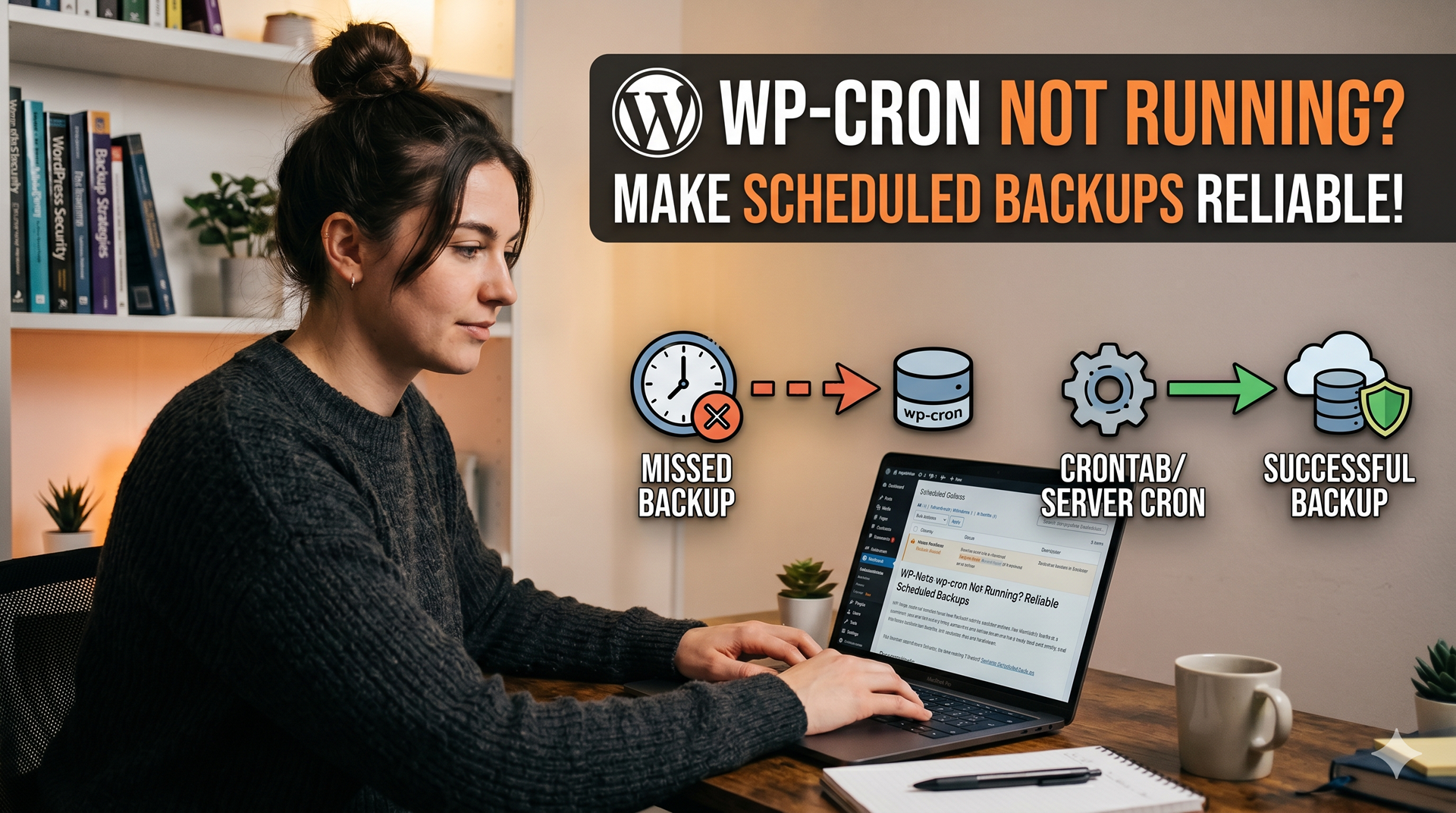
This is one of the most common — and most dangerous — backup problems, because it fails silently. The root cause almost always traces back to how WordPress handles scheduling: WP-Cron.
What Is WP-Cron, and Why Is It Different From a Real Cron Job
Despite the name, WP-Cron isn’t a real system-level cron job. A real cron job (the kind used on Linux servers) runs on a fixed clock, independent of anything else happening on the server.
WP-Cron works differently: every time someone — a visitor, a bot, even a logged-in admin — loads a page on your site, WordPress checks whether any scheduled task is due, and if so, runs it right then. There’s no clock running in the background. No visit, no check, no scheduled task runs.
For a busy site with constant traffic, this is invisible — tasks fire close enough to on time that nobody notices the difference. For a low-traffic site, a staging environment, or a site behind a caching layer that serves cached pages without ever hitting PHP, it’s a different story entirely.
Why WP-Cron Fails Silently
A few common situations cause scheduled backups to stop running without any visible error:
- Low traffic — If days go by with few or no visits, WP-Cron simply never gets triggered.
- Full-page caching — If every request is served from a cache (browser cache, page cache, or a CDN) without ever reaching PHP, WP-Cron never runs, even on a high-traffic site.
- Host-level cron disabling — Some hosts disable WP-Cron by default for performance reasons and expect you to configure a real cron job instead, often without making this obvious.
- A long-running request blocking the next one — If a previous WP-Cron run is still “in progress” (or stuck), WordPress may decline to start a new one until the lock clears.
None of these produce an error message anywhere in your WordPress admin by default — the schedule simply doesn’t fire, and the next backup quietly never happens.
How to Tell If WP-Cron Is the Problem
Look for these signs:
- The “last backup” date in your backup plugin keeps drifting further from today, even though scheduling is enabled.
- Manually clicking “Backup Now” always works fine — only the scheduled backups are missing.
- There’s no failure logged anywhere, because the job never started in the first place — a failure log only appears for backups that began and then broke.
- The gap between backups roughly matches your slowest traffic period (e.g. weekends, holidays).
How to Check If WP-Cron Is Actually Running
Before changing anything, confirm the diagnosis:
- Go to Tools → Site Health → Info in your WordPress admin and look under the “WordPress Constants” or “Server” section for cron-related entries.
- Check whether
DISABLE_WP_CRONis already set totruein yourwp-config.php— if it is, and you haven’t set up a replacement system cron job, that alone explains the missing backups. - Note how many days have actually passed since your last successful scheduled backup compared to your configured frequency.
The Real Fix: Disable WP-Cron and Use a System Cron Job
The most reliable solution doesn’t try to make WP-Cron more reliable — it replaces it with a real, clock-based cron job:
- Add this line to your
wp-config.php, above the line that says/* That's all, stop editing! */:
define('DISABLE_WP_CRON', true); - In your hosting control panel (cPanel, Plesk, or your host’s custom dashboard), find the Cron Jobs section.
- Create a new cron job that runs every 15 minutes and requests:
wget -q -O /dev/null https://yoursite.com/wp-cron.php?doing_wp_cron
(or the equivalentcurlcommand — most hosts provide a ready-made field for the URL and let you pick the interval). - Save the cron job. From this point on, WordPress’s scheduled tasks — including your backup schedule — run on a fixed clock, completely independent of site traffic.
This is a five-minute change, and it’s the single most effective fix for “my scheduled backups just stopped happening” on any low-to-medium traffic WordPress site.
How to Know Immediately When a Scheduled Backup Fails
Fixing WP-Cron solves the most common cause, but it’s still worth having a safety net — hosting changes, plugin conflicts, or a renamed cron job can all break scheduling again later, and you want to know right away, not twelve days later.
This is exactly what the Stale Backup Alert in Nota Backup & Restore is built for. Under Settings → Notifications, you can enable an alert that checks daily whether any backup — manual or scheduled — has completed successfully within a configurable window (for example, 7 days). If nothing has, you get an email immediately, instead of discovering the gap when you actually need a backup.
- Works even if the underlying cause is WP-Cron, a hosting issue, or anything else — it doesn’t care why a backup is missing, only that it is.
- Repeat alerts are suppressed for 23 hours so a persistent issue doesn’t flood your inbox.
- Combined with email notifications on backup success/failure, you get visibility into the entire schedule, not just individual job outcomes.
Frequently Asked Questions
Will disabling WP-Cron break anything else on my site?
No — as long as you replace it with a real system cron job hitting wp-cron.php. All scheduled WordPress tasks (not just backups — also publishing scheduled posts, plugin update checks, etc.) continue to run, just on a reliable clock instead of depending on visitor traffic.
How often should the system cron job run?
Every 15 minutes is a sensible default for most sites. If your backup schedule is hourly or more frequent, you may want to match the interval more closely; for daily or weekly backups, 15 minutes is more than enough precision.
My host says they don’t offer cron jobs — what then?
Some budget hosts restrict this. In that case, a free external cron service (which pings your wp-cron.php?doing_wp_cron URL on a schedule) achieves the same result without needing access to your host’s control panel.
Conclusion
WP-Cron is a clever workaround, but it was never designed to be a dependable scheduler on its own — it depends entirely on traffic that may or may not show up. For anything as important as backups, that’s not a risk worth taking. Disable WP-Cron, set up a real system cron job, and add a stale backup alert as a safety net. Once that’s in place, “scheduled” finally means what it’s supposed to mean.
Never wonder if your last backup actually ran
Nota Backup & Restore includes built-in Stale Backup Alerts, so you’re notified the moment a scheduled backup goes missing. Start your 14-day free trial — no credit card required.