

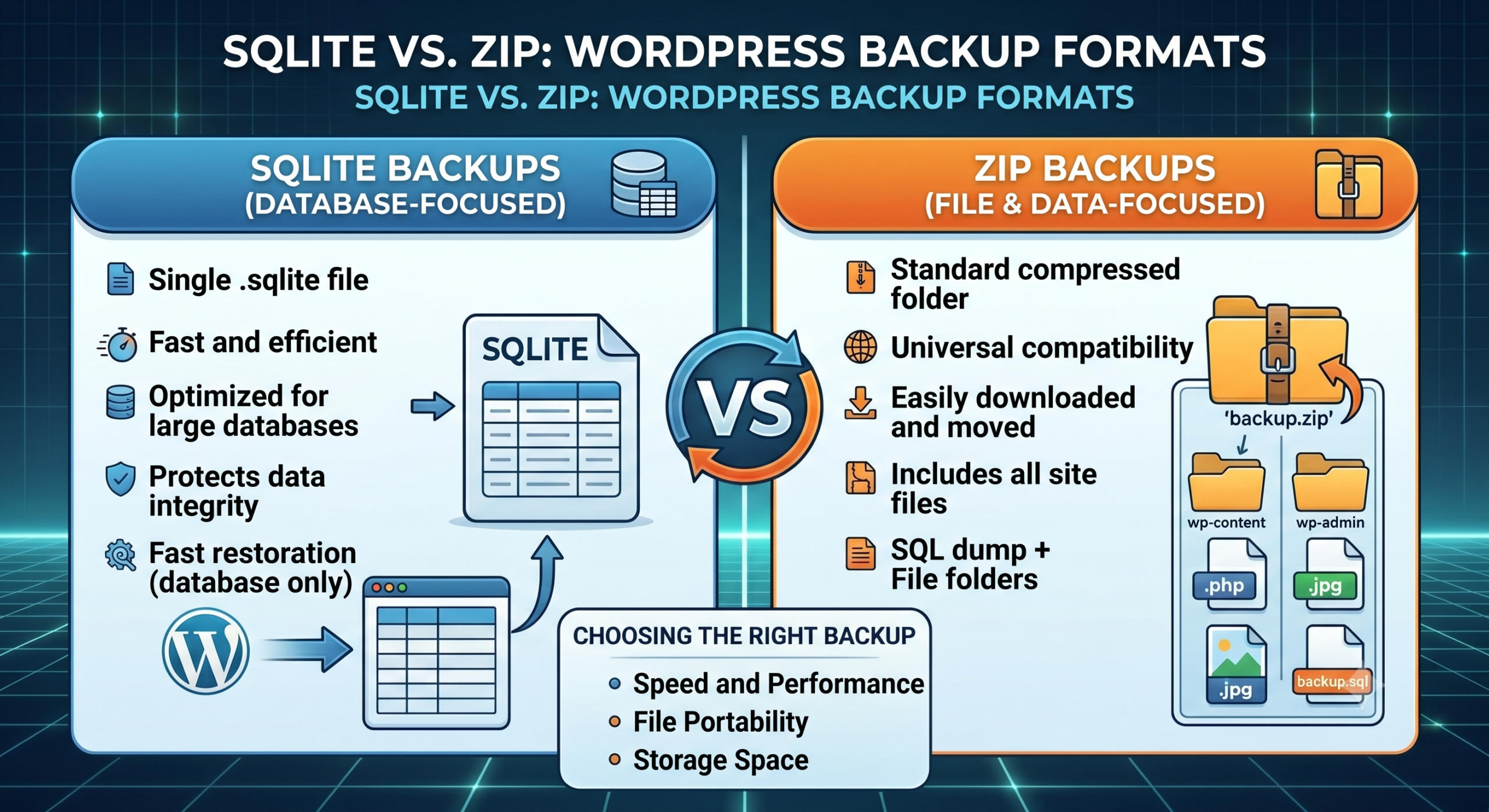
Introduction
Almost every WordPress backup plugin does the same thing: it zips up your files and database into a single archive. It works, but it has a hidden cost — every single backup re-compresses everything from scratch, even if only a handful of files changed since yesterday. On a large site, that adds up to a lot of wasted time, CPU, and storage.
There’s a different approach: the SQLite backup format. It’s less common in the WordPress world, but it solves exactly this problem. Here’s how it works, how it compares to ZIP, and when it actually makes a difference.
How a Typical ZIP Backup Works
When you run a standard ZIP-based backup, the plugin walks through every file in your WordPress installation, compresses it, and adds it to a single ZIP archive — alongside a full SQL export of your database. Every time you run a backup, this entire process starts over from zero, regardless of whether your site changed at all since the last one.
For a small site, that’s barely noticeable. For a site with a large media library and a daily backup schedule, it means:
- The same unchanged images get re-compressed every single day.
- Backup time grows steadily as your site grows, even if your day-to-day changes are small.
- Each backup uses roughly the same amount of storage as the last one, with no benefit from how little actually changed.
What Is the SQLite Backup Format?
SQLite itself isn’t something Nota invented — it’s a widely used, self-contained database engine that stores an entire structured database in a single file. It powers everything from web browsers to mobile apps, precisely because a single-file database is easy to move, copy, and manage reliably.
Instead of packaging your site as thousands of loose, individually compressed files inside a ZIP, the SQLite backup format in Nota Backup & Restore stores your entire file tree and database inside one structured .db archive. The result is a backup that compresses more efficiently and opens the door to a feature ZIP simply can’t offer: incremental backups.
Why SQLite Backups Are Smaller and Faster
Two things make the SQLite format more efficient than ZIP for ongoing, repeated backups:
- Better compression — A single structured archive compresses more efficiently than thousands of individually zipped files, especially across a large media library with many similar file types.
- Less filesystem overhead — Writing to one file is faster than opening, compressing, and closing thousands of small ones, which matters a lot on shared hosting where I/O is often the real bottleneck, not CPU.
The Real Advantage: Incremental Backups
This is where SQLite genuinely changes the equation. With the SQLite format, only the files that changed since your last backup are rewritten — everything else stays untouched. A ZIP backup, by contrast, re-zips your entire site every single time, whether one file changed or one thousand.
On a real site, the practical effect is significant: after the first full backup, every subsequent backup only has to process the handful of files that actually changed — new uploads, edited theme files, updated plugin code. The rest of your site, which usually doesn’t change between backups, is skipped entirely. That means:
- Daily backups that take a fraction of the time a full ZIP backup would take.
- Far less load on shared hosting CPU and I/O limits with every scheduled run.
- Smaller, faster cloud uploads — especially noticeable if you’re uploading to Google Drive, S3, or Dropbox on a daily schedule.
When Should You Use SQLite Instead of ZIP?
SQLite isn’t automatically the right choice for every site. Here’s a practical way to decide:
Choose SQLite if:
- Your site has a large media library or grows steadily over time.
- You run frequent (daily or more) scheduled backups.
- You’re on shared hosting and want to minimize CPU/I/O load from backups.
- You upload backups to the cloud and want to keep upload times and storage costs down.
ZIP is still a fine choice if:
- You back up infrequently (e.g. before major updates only).
- Your site is small and backup time was never really an issue.
- You want a format you can manually browse or extract with any standard tool without needing the plugin.
How to Switch to SQLite Backups
The SQLite format is available on Nota Backup & Restore’s Pro plans. To switch:
- Go to Nota Backup & Restore in your WordPress admin sidebar.
- Go to Settings → General and set the archive format to SQLite instead of ZIP (you can also reach this via the Change link next to the format on the main backup page).
- Run your first backup as usual — this initial run is always a full backup, since there’s nothing to compare against yet.
- Every backup after that automatically benefits from incremental processing, without any extra configuration.
Frequently Asked Questions
Is the SQLite format as secure as ZIP?
Yes — Nota Backup & Restore’s AES-256 encryption option applies regardless of which archive format you choose.
If I switch from ZIP to SQLite, do I lose my old backups?
No. Your existing ZIP backups remain exactly as they are; switching the format only affects backups created from that point forward. You can keep both formats around if you want a transition period.
Does incremental backup mean I lose older versions of changed files?
No — each backup run is still a complete, restorable snapshot of your site at that point in time. Incremental processing only changes how efficiently that snapshot is created internally; it doesn’t reduce what you can restore.
Conclusion
ZIP is the format everyone defaults to because it’s universal and simple — but for sites that back up often or have grown large over time, it’s also the slower, more wasteful option. The SQLite format trades a bit of that universality for real, measurable gains: smaller archives, faster backups, and an incremental model that only does work when work has actually happened. For anyone running daily backups on shared hosting, that difference is hard to ignore.
Want faster, smaller backups?
Switch to the SQLite archive format in Nota Backup & Restore Pro and get incremental backups that only process what actually changed. Start your 14-day free trial — no credit card required.