

Introduction
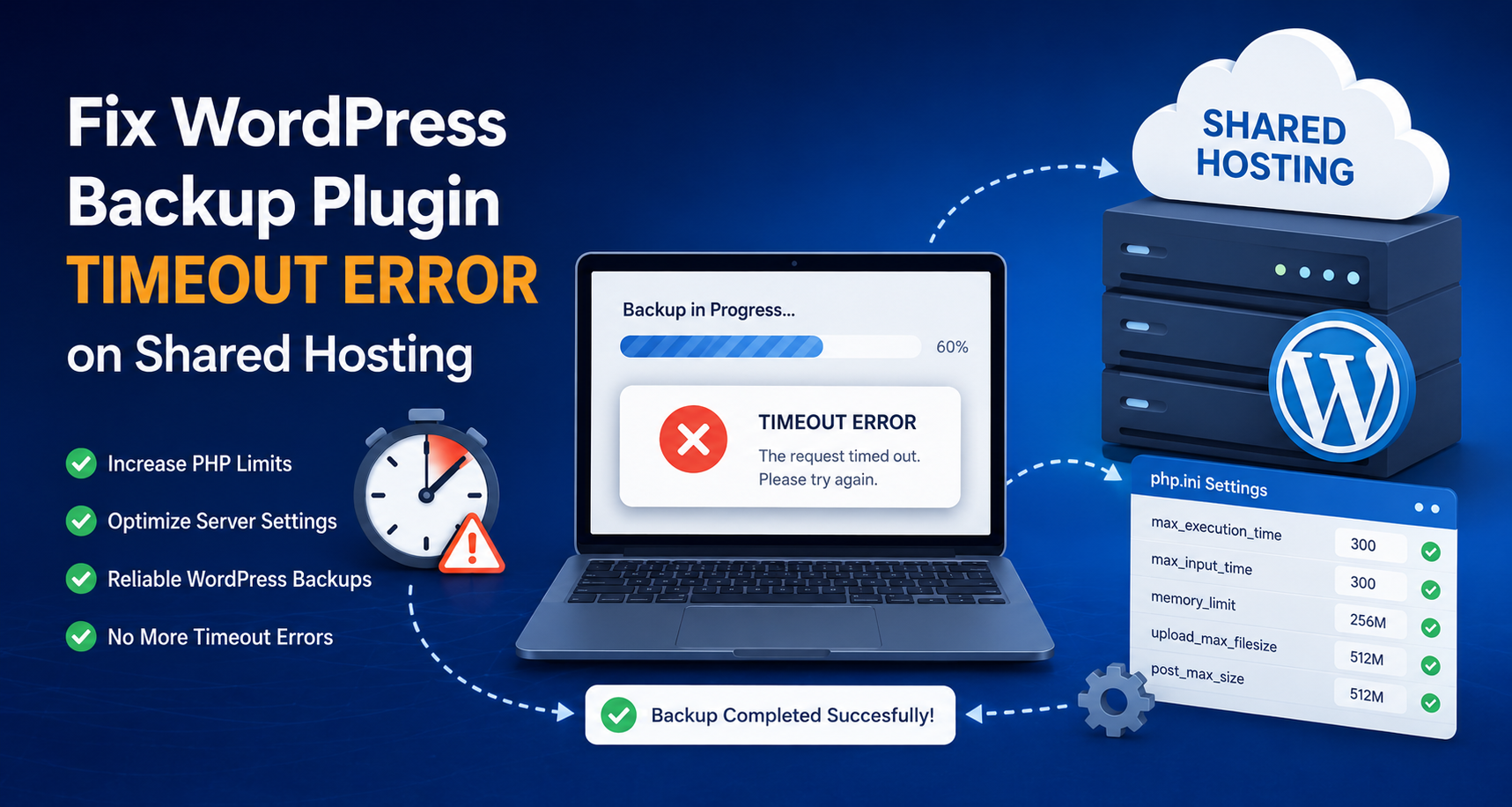
You start a backup, watch the progress bar crawl forward… and then it just stops. No error, no confirmation — just silence, or a generic 500 Internal Server Error. If this sounds familiar, you’re dealing with one of the most common WordPress problems on shared hosting: the backup timeout error.
This isn’t a bug in your site. It’s a side effect of how shared hosting is built — and once you understand why it happens, it’s straightforward to fix. This guide walks through the root cause and five practical ways to solve it for good.
Why WordPress Backups Time Out on Shared Hosting
Shared hosting plans are designed to keep many websites running on the same server without one site hogging all the resources. To do that, hosts enforce hard limits that a backup process can easily hit on anything beyond a small site:
- PHP max_execution_time — Often capped at 30–60 seconds. A traditional backup plugin tries to zip your entire site in one script run, which can take several minutes on a real site.
- Memory limit (memory_limit) — Building a large ZIP archive or running a big SQL export in memory can exceed 128–256 MB limits, especially with a large media library.
- CPU and I/O throttling — Many hosts silently throttle or kill processes that use too much CPU for too long, even if PHP itself hasn’t timed out yet.
- No control over server configuration — Without root access, you can’t just raise these limits in
php.inithe way you could on a VPS.
The bigger your site — more posts, more images, more plugins — the more likely a single-pass backup is to run straight into one of these walls.
How to Tell You’re Actually Hitting a Timeout
Timeout errors don’t always look the same. Common symptoms include:
- The backup progress bar freezes at the same percentage every time.
- A 500 or 504 Gateway Timeout error appears mid-backup.
- The backup “completes” but the resulting ZIP file is much smaller than expected, or won’t open.
- Your backup plugin’s history log shows the job as Failed with no clear reason, or it just disappears.
- The issue gets worse over time as your media library and database grow.
5 Ways to Fix WordPress Backup Timeout Errors on Shared Hosting
1. Reduce the Backup Chunk Size
This is the single most effective fix, and it doesn’t require contacting your host. Instead of processing the entire site in one PHP request, a properly built backup plugin breaks the job into small chunks — one AJAX request adds a batch of files to the ZIP, then the browser fires the next request, and so on.
If your plugin supports it, lower the ZIP Chunk Size (for example, from 25 MB down to 5 MB per request). Smaller chunks mean each individual request finishes well within the PHP time limit, even on a 30-second cap. The trade-off is a backup that takes a bit longer overall, but one that actually finishes.
2. Exclude Large Files and Folders You Don’t Need
A huge portion of failed backups are caused by folders that don’t need to be backed up in the first place:
- Video uploads (
/wp-content/uploads/videos) - Large image archives or unused media
- Cache directories from plugins like W3 Total Cache, WP Rocket, or LiteSpeed Cache
- Log files and debug exports
Most modern backup plugins automatically skip known cache folders, but it’s worth adding your own exclusion rules for large media folders. Cutting backup size from 4 GB to 1.5 GB can be the difference between a job that times out and one that finishes in minutes.
3. Make Sure WP-Cron Is Actually Running
Scheduled backups rely on WordPress’s built-in cron system (WP-Cron), which only fires when someone visits your site. On low-traffic sites, this can mean your “daily” backup silently doesn’t run for days — which often gets mistaken for a timeout, when really the job never started.
To fix this properly, set up a real server-side cron job instead of relying on visitor traffic. In cPanel, go to Cron Jobs and add an entry that runs every minute:
*/1 * * * * curl -s "https://yoursite.com/wp-cron.php?doing_wp_cron" > /dev/null 2>&1Then add this line to your wp-config.php so WordPress stops depending on visitor traffic to trigger cron at all:
define( 'DISABLE_WP_CRON', true );If you’re using Nota Backup & Restore, you don’t need to write any of this from scratch — under Settings → Automatic Backups, the plugin shows you the exact curl command for your own domain, ready to paste straight into cPanel, along with the matching wp-config.php line. This removes the most common source of copy-paste mistakes (wrong domain, wrong path) when setting up server cron manually.
Once this is in place, your scheduled backups run on a fixed clock instead of depending on random site traffic to trigger them.
4. Ask Your Host to Raise PHP Limits (When You Can)
Even on shared hosting, many providers will increase memory_limit or max_execution_time for your account on request, especially if you explain you’re running scheduled backups. It’s worth a quick support ticket asking for:
memory_limitraised to at least 256 MBmax_execution_timeraised if your host allows it (many won’t go above 60–90 seconds on shared plans — that’s expected)
This won’t fully solve the problem on its own — chunked processing is still doing the heavy lifting — but it gives you extra headroom.
5. Use a Backup Plugin Built for Chunked Processing
Some backup plugins were originally built for VPS and dedicated servers, where execution limits aren’t a concern, and they simply don’t handle shared hosting well. Nota Backup & Restore was designed around this exact constraint from day one:
- Chunked ZIP creation — each AJAX request adds a small batch of files, so no single request runs long enough to hit a timeout.
- Stale backup detection — if a backup gets no activity for 10 minutes, it’s automatically marked as failed and logged, instead of leaving you with a job that’s stuck forever.
- Configurable chunk size — drop it down further on especially restrictive hosting plans.
- Automatic cache exclusion — known cache directories are skipped without any manual setup.
- Built-in server cron instructions — your exact
curlcommand andwp-config.phpline, generated for your domain, right in Settings. - AES-256 encryption and multi-cloud upload — so the backup isn’t just reliable, it’s also secure and off-site.
What to Do If a Backup Is Stuck Right Now
If you’re mid-incident and a backup looks frozen:
- Wait at least 10–15 minutes — some plugins (including Nota Backup & Restore) auto-detect and clean up stalled jobs after a heartbeat timeout, rather than leaving them stuck forever.
- Check your backup plugin’s log or history table for a specific error message instead of guessing.
- Lower the chunk size in settings and try again — this resolves the majority of stuck backups.
- Temporarily exclude your largest media folder and re-run the backup to confirm it’s a size issue.
Frequently Asked Questions
Does a backup timeout mean my site is broken?
No. A timeout only affects the backup process itself — your live site keeps running normally. It just means the backup didn’t finish and needs to be retried with a smaller chunk size or fewer excluded folders.
Why does my backup work on localhost but fail on shared hosting?
Local development environments rarely enforce strict execution time or memory limits, so the same backup that runs instantly on localhost can hit hard limits the moment it runs on a real shared hosting account.
Is there a backup method that avoids PHP limits entirely?
Database-only backups are smaller and faster, so they’re less likely to time out, but for a full site backup on shared hosting, chunked processing is the most reliable approach without needing server-level changes.
Conclusion
Backup timeouts on shared hosting almost always come down to the same root cause: a single PHP request trying to do too much work before the server cuts it off. Reducing chunk size, excluding unnecessary files, setting up a real server cron job, and using a plugin built specifically for chunked processing will resolve the vast majority of timeout errors — without needing to upgrade your hosting plan.
Tired of backups that never finish?
Nota Backup & Restore was built specifically for shared hosting, with chunked processing that avoids timeouts by design. Start your 14-day free trial — no credit card required.